Contents
- Footpath Basics
- Route Planning
- Organization
- Saving routes
- Creating custom lists
- Editing saved routes
- Merging, duplicating, and splitting saved routes
- Maps
- Navigation
- GPS workouts & trips
- Recording a GPS track
- Logging a workout manually
- Apple Health
- Understanding GPS accuracy
- Syncing workouts with other services
- Import & Export
- Sharing
- Account Management
3D terrain maps Elite
How to use the 3D terrain maps in Footpath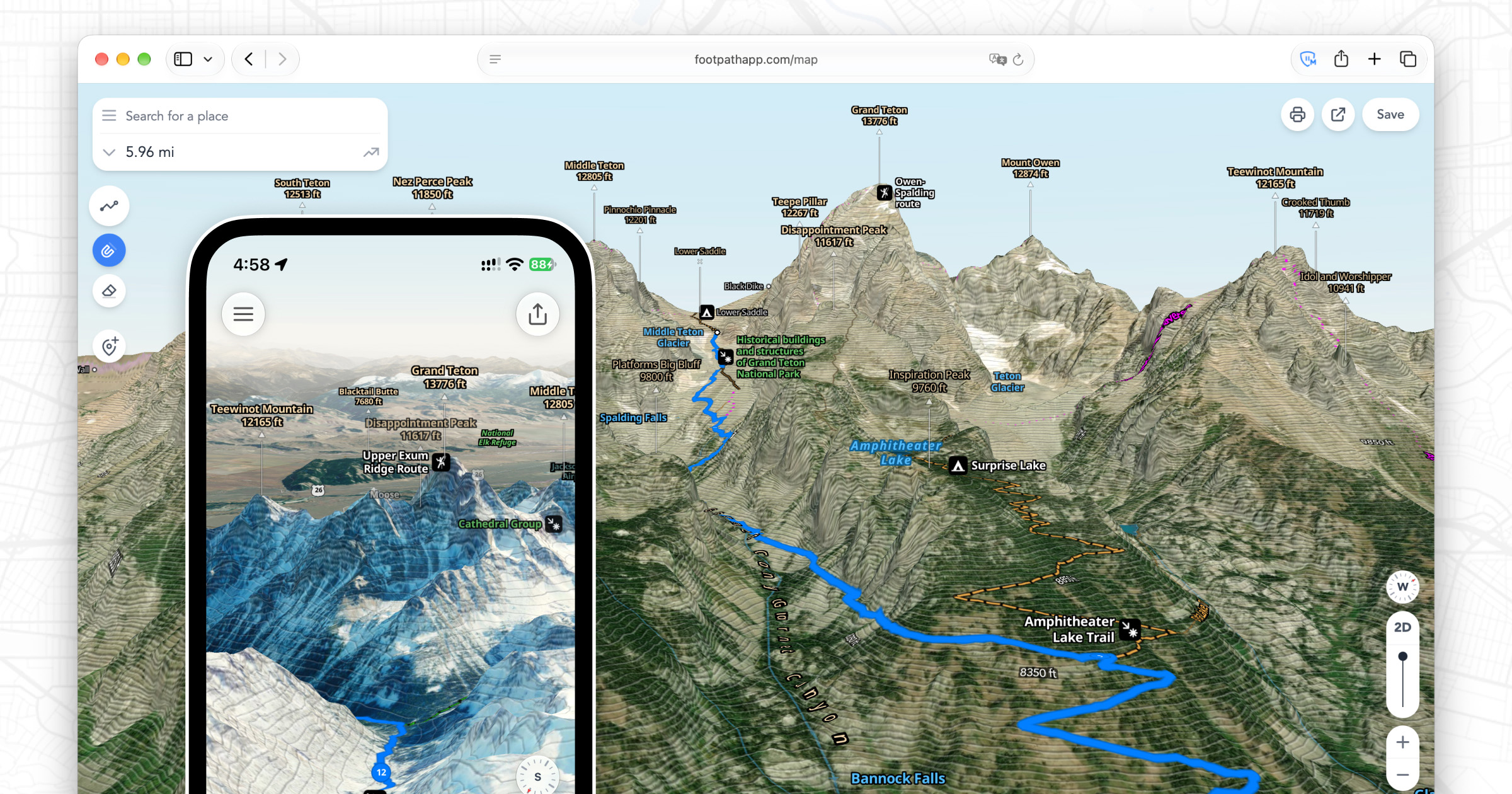
Footpath Elite users can view any map style with high-resolution 3D terrain.
Scope out mountains and canyons in advance of your adventure, whether you use Footpath on iOS, Android, or the Web.
Combine this with our Satellite Live maps and Slope Angle shading for clearer understandings of potential winter avalanche conditions.
On mobile, offline map downloads include the 3D terrain data, so you can take your 3D maps with you into the backcountry.
Map gestures on mobile
How to use 3D maps on mobile:
- Pan the map with one finger
- Zoom the map by pinching with two fingers
- Tilt the map by dragging two fingers up/down
- Rotate the map by rotating two fingers
There are also shortcuts to allow you to manipulate the 3D maps with one hand:
- Zoom the map by double tapping and then dragging the second tap up or down
- Tilt the map by dragging the 3D button up/down
- Rotate the map by dragging the compass button around in a circle
- Toggle between map styles by long pressing the map settings button
Map gestures on web
With a trackpad:
- To pan:
- Click and drag the map
- Or, pan the map in any direction with a two finger scroll gesture
- To zoom:
- Pinch to zoom with two fingers
- Or, hold SHIFT and scroll with two fingers up/down
- To tilt:
- Hold CMD or CTRL then click and drag up/down
- Or, hold CMD or CTRL and scroll with two fingers up/down
- To rotate:
- Hold CMD or CTRL then click and drag left/right
- Hold CMD or CTRL and scroll with two fingers left or right
- In some browsers you can also use a two finger rotate gesture
With a mouse (traditional scroll wheel):
- To pan:
- Click and drag the map
- To zoom:
- Use the scroll wheel to zoom in and out
- Or, click the zoom buttons
- To tilt:
- Hold CMD or CTRL then click and drag up/down
- Or, drag the 3D slider near the zoom button
- To rotate:
- Hold CMD or CTRL then click and drag left/right
- Or, click and drag the compass button
With a mouse with multidirectional scroll (e.g. Apple Magic Mouse):
- To pan:
- Click and drag the map
- Or, use a scroll gesture in any direction
- To zoom:
- Hold SHIFT and scroll up/down
- Or, click the zoom buttons
- To tilt:
- Hold CMD or CTRL then click and drag up/down
- Or, hold CMD or CTRL and scroll up/down
- Or, drag the 3D slider near the zoom button
- To rotate:
- Hold CMD or CTRL then click and drag left/right
- Or, hold CMD or CTRL and scroll left/right
- Or, click and drag the compass button
With they keyboard:
- To pan:
- Press or hold the arrow keys
- To zoom:
- Press the + and - keys
- To tilt:
- Hold SHIFT then press or hold the arrow keys up/down
- To rotate:
- Press or hold the arrow keys left/right
- To toggle between map styles:
- Press the (m) button